How to Bulk Generate PDF Invoices in MemberPress
Tax season hits, and a client asks you to export all invoices for the last fiscal year. You open your MemberPress dashboard, look at hundreds of transactions, and realize there’s no built-in way to generate PDF invoices in bulk. One by one? That’s not a workflow — that’s a punishment.
The MemberPress PDF Invoice add-on does a great job generating individual invoices on the fly. But when you need invoices for dozens or hundreds of transactions at once — for accounting, compliance, or a client handoff — you’re stuck clicking through each one manually. I built the PDF Invoice Generator for MemberPress to solve exactly that.
This tutorial walks through installing the plugin, configuring it, and using it to generate bulk invoices with a few clicks.
What the Plugin Does
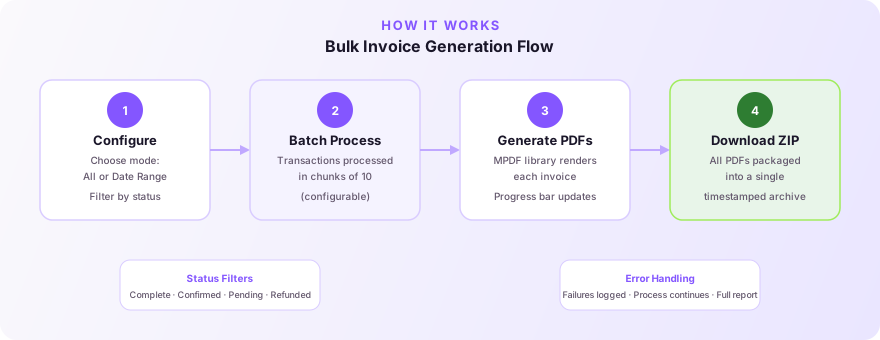
The PDF Invoice Generator extends the existing MemberPress PDF Invoice add-on with batch processing capabilities. Instead of generating one invoice at a time, you can generate invoices for all transactions at once, or filter by date range and transaction status.
Here’s what it adds on top of the built-in PDF Invoice add-on:
- Bulk generation for all transactions or a specific date range.
- Status filtering — choose which transaction statuses to include (Complete, Confirmed, Pending, Refunded).
- Batch processing that runs in chunks to avoid server timeouts on large sites.
- Progress tracking with a visual progress bar so you know exactly where things stand.
- Automatic ZIP packaging — download all generated invoices as a single ZIP file.
Prerequisites
Before installing, make sure you have the following in place:
- WordPress 5.0 or higher.
- MemberPress installed and active.
- MemberPress PDF Invoice add-on installed and active — this is the official add-on that handles the actual PDF rendering. The generator plugin builds on top of it.
- PHP 7.4+ on your server.
- PHP ZipArchive extension enabled (required for the ZIP download feature). Most modern hosts have this enabled by default.
If any dependency is missing, the plugin will show an admin notice telling you exactly what needs to be activated.
Step 1: Install the Plugin
Download the latest release from the GitHub repository. You can either clone the repo or download the ZIP file.
Upload the pdf-invoice-generator-for-memberpress folder to your /wp-content/plugins/ directory. Then head to Plugins → Installed Plugins in your WordPress admin and activate it.
Once activated, you’ll find a new menu item under MemberPress → PDF Invoices.
Step 2: Choose Your Generation Mode
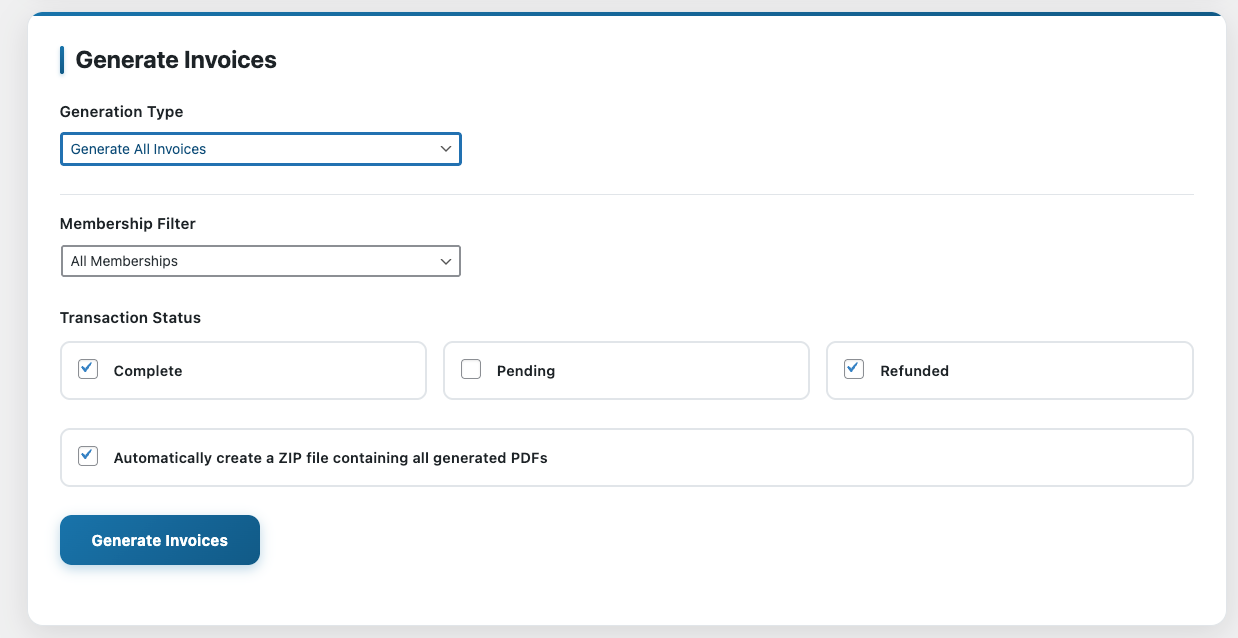
The plugin offers two generation modes, available from a dropdown at the top of the interface.
Generate All Invoices processes every transaction in your MemberPress database. This is useful for a one-time full export — for example, when setting up invoices for the first time or doing a complete backup before migrating.
Generate Invoices for Specific Period lets you set a start date and end date (with optional times). This is the mode you’ll use most often — quarterly tax exports, monthly accounting batches, or pulling invoices for a specific fiscal year.
Before you hit generate, the plugin shows you exactly how many transactions match your current filters. No guessing.
Step 3: Filter by Transaction Status
Not every transaction needs an invoice. The plugin lets you select which statuses to include:
- Complete — successfully processed payments.
- Confirmed — verified transactions.
- Pending — transactions awaiting confirmation.
- Refunded — reversed transactions.
For most accounting purposes, you’ll want Complete and Confirmed. But if you need refund documentation for tax records, include Refunded as well.
Step 4: Generate and Monitor Progress
Click Generate Invoices and the plugin starts processing in batches. By default, it processes 10 transactions per batch to keep server load manageable. If your server can handle more, you can increase this with the mpfig_batch_size filter:
add_filter( 'mpfig_batch_size', function() {
    return 50; // Process 50 transactions per batch
});
A progress bar updates in real time, showing how many invoices have been generated, how many are remaining, and flagging any failures. If a specific transaction fails (corrupt data, missing membership info), the plugin logs the error and continues with the rest — it won’t bail out on you mid-process.
Step 5: Download Your Invoices
If you toggled the Create ZIP File option before generating, the plugin packages all generated PDFs into a single ZIP archive once processing completes. The ZIP is saved to wp-content/uploads/mepr/mpdf/ with a timestamped filename, so you can always find it later.
One important note: the PDF generation process overwrites existing invoice files with the same name. If you’ve previously generated invoices and want to keep those files, download them before running the generator again.
Troubleshooting Common Issues
“No transactions found” when generating. Double-check your date range and status filters. If you’re using the date range mode, make sure the dates cover the period you expect. Also verify that your MemberPress database actually has transactions — the plugin reads directly from the MemberPress transactions table.
PDF generation fails for specific transactions. This usually means the MPDF library (used by the MemberPress PDF Invoice add-on) hit an issue with that transaction’s data. Check that the wp-content/uploads/mepr/mpdf/ directory exists and is writable. Also verify your server’s PHP memory limit — large invoices with custom templates can be memory-intensive.
ZIP file not created. Confirm that the PHP ZipArchive extension is enabled on your server. You can check this by looking at your phpinfo() output or asking your host. Also ensure your uploads directory has write permissions.
Server timeout during generation. If you’re processing thousands of transactions, the default batch size of 10 might not be enough to finish within your server’s max execution time. Try increasing the batch size with the mpfig_batch_size filter. Alternatively, break your generation into smaller date ranges.
Use Cases
The most common scenario is quarterly or annual tax exports — pulling every completed transaction for a fiscal period and handing the ZIP to your accountant. But there are a few other situations where bulk generation pays off:
Site migrations. Before moving to a new host or rebuilding your MemberPress setup, generate a complete invoice archive. It’s a safety net in case transaction data gets messy during migration.
Compliance audits. If you operate in a jurisdiction that requires invoice records for all digital transactions, this plugin makes it trivial to produce them on demand.
Client handoffs. If you manage MemberPress sites for clients, bulk-generating invoices and delivering them as a ZIP is far more professional than asking the client to click through each transaction.
What’s Next
The plugin is open source and available on GitHub. If you run into issues or have feature ideas, open an issue on the repo.
If you’re dealing with other MemberPress operational challenges, you might find these helpful:
- How to Track and Manage Gift Memberships in MemberPress — tracking and automating gift membership workflows.
- How to Troubleshoot Failed Subscription Renewals in MemberPress — diagnosing silent renewal failures before they cost you revenue.
Have a similar challenge?
I help SaaS companies and WordPress platforms solve their most complex technical problems.
Let's Talk